
For teachers
Class check-ins and surveys, from one sentence to Claude
You already have the class. Tell Claude what you want to find out from them, and formset turns it into a form behind a link and a QR code for the board. When the answers are in, ask Claude what they say, in the same conversation.
1. What to ask for
Say who it is for and what you need to know. Claude drafts the questions, and you can change any of them with another sentence. For example:
- “Make an anonymous check-in for my class on how this unit is going: the pace, how clear the explanations have been, and what would help most.” See the class check-in template.
- “One exit question for today’s lesson: what is still confusing? No names.”
- “A signup for the after-school club: name, which group they want to join, and how often they can come.” See the club signup template.
- “An end-of-course evaluation: rate each part from 1 to 5 and ask what they would change.” See the course evaluation template.
The class check-in comes back as this page. Try the questions; nothing is sent.
2. In the classroom
Ask Claude for a QR code and put it on the board in the last few minutes of the lesson. Students open the form on any phone or laptop with no account and no app, and answers arrive while everyone is still in the room.
To slow down abuse, a new formset account can make 2 forms in its first 24 hours, each taking up to 25 answers. For a class bigger than that, or more than two classes, connect formset the day before you need it.
3. Reading the answers
Come back to the conversation and ask:
- “How did the class rate the pace?”
- “What did students say would help most?”
- “Read me the comments.”
- “Send me everything as a spreadsheet.”
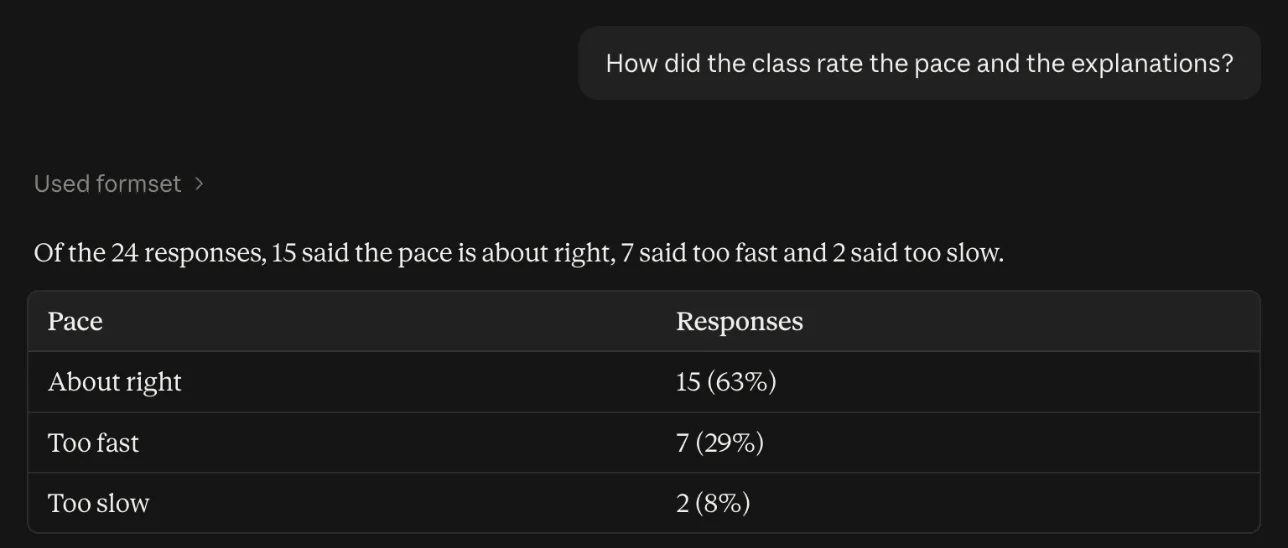
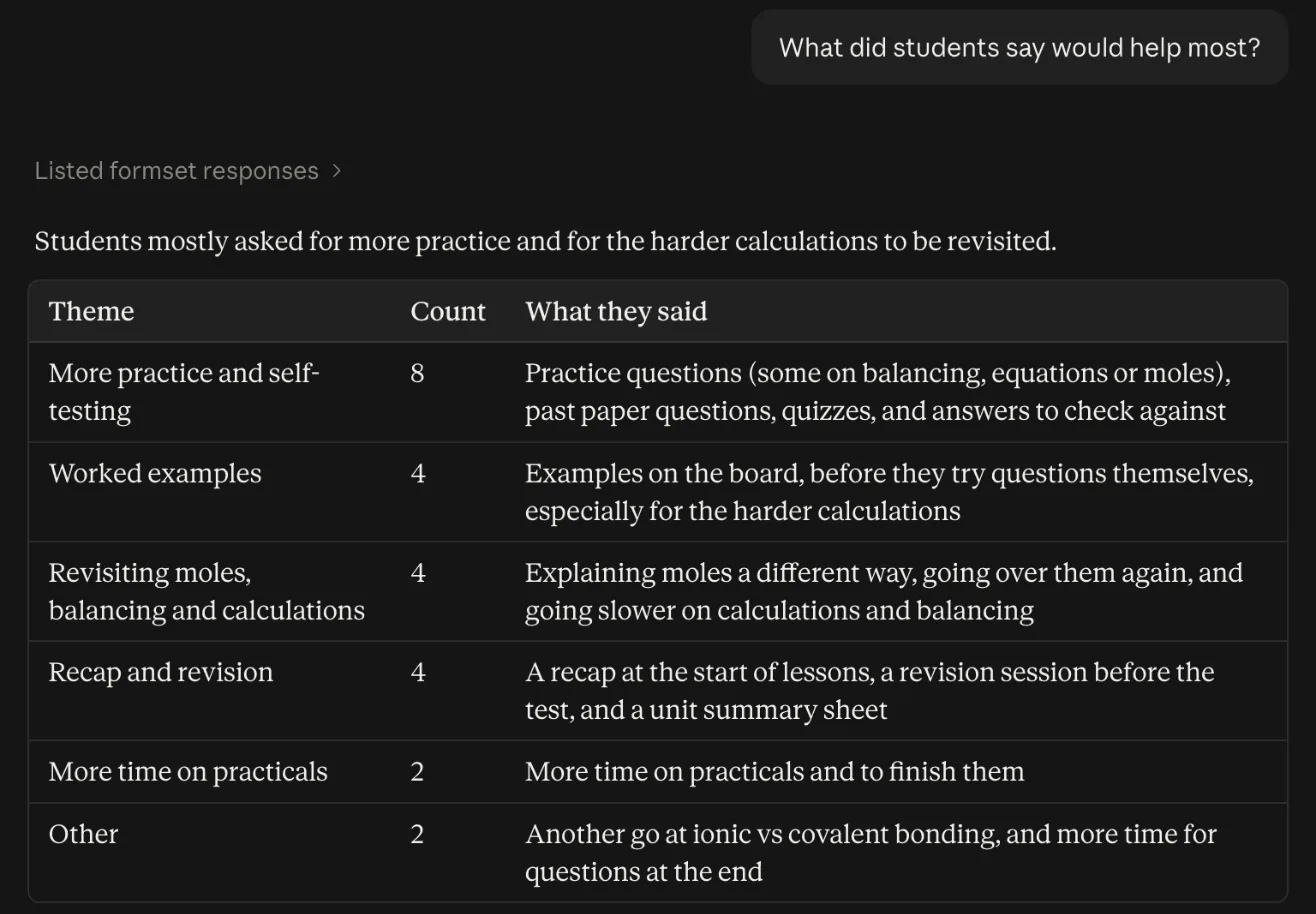
Counts and averages are worked out by formset and handed to Claude, which turns them into an answer. Run the same check-in again later in the unit and ask how the two compare.
4. Student privacy
- You decide what is asked. The class check-in template asks nothing that identifies a student, and any form can be written that way: tell Claude not to ask for names. A signup asks for names, because a signup needs them.
- Answers go to your account. Claude reads them only when you ask it to. If you share a read-only results page or a download link, anyone with that link can see the answers too, so share those only with people who should.
- No AI training, no model calls of our own. formset doesn't use answers to train anything and makes no AI model calls itself.
- Your school’s rules apply. You are responsible for following your school’s policies on collecting information from students. The privacy policy sets out what formset stores and for how long.
5. What it doesn’t do
- No grading or scored quizzes. formset collects answers; it doesn’t mark them.
- No student accounts or class rosters.
- No file uploads.
6. Connect formset
formset is listed in Claude’s connector directory. Connecting takes about a minute, and you only do it once.
- Open the formset listing in Claude’s directory and select Connect to Claude.
- A formset window opens. Choose Continue with Google, then Allow.
- In a chat, select +, then Connectors, and make sure formset is switched on.
The free plan covers class use: unlimited forms and answers within fair use, kept for 12 months, with CSV export. Pro ($12 a month) adds password-protected forms, for something only your colleagues should see. The documentation covers other assistants, and the templates have more examples.